Showing posts with label ubuntu. Show all posts

Monday

Well, a post a day

was good while it lasted. Just finished a tremendous meal of country fried cube steak, jasmine rice, green beans cooked with onions and bacon, poached baby carrots with butter and brown sugar, and a hot, crispy loaf of white mountain bread. Dear God that was good. I never can seem to time the gravy so it is ready with everything else though... oh well.

Someone who will not be named had to remind me of the release date for the seventh and final Harry Potter book... you macadamia nut... so it is unfortunately right at the forefront of my thoughts. It's so bad that I have even took a step into the world of fan fiction and read the remarkably satisfying "Harry Potter and the Seventh Horcrux" by Melindaleo, a 34 chapter novel which, while certainly not written to the standards of J.K.Rowling, attempts to maintain a level of consistency with the original works that surprised me. This book is in fact making the rounds on torrent sites, claiming to be a leak of Deathly Hollows.

I've installed the latest official Ubuntu release 7.04, Feisty Fawn, and must say I am quite pleased. The new Restricted Driver Manager made installing the proprietary ATI driver a snap, it seemed to have a problem replacing the original xorg.conf file when i disabled it. Simple enough to fix, however. After making my way past the error messages, I logged in to the text console, sudo'd to root, and replaced the file /etc/X11/xorg.conf with the backup copy: xorg.conf.original-0

For some unfortunate reason, the ati driver decides to max out my video's contrast settings about 5 minutes after booting up. Have to see about fixing that... At least the power management for this notebook seems to be far better supported in this release, and it's always a pleasure to see all of the extra polish in each new release.

Thursday

Human Interface Guidelines for Command Line Applications

Human Interface Guidelines for Command Line Applications. I've always wished that Command Line apps were a little more usable. I think that a few guidelines, if followed would make the command far more approachable and intuitive. The GNU habit of using single dashes for abbreviated arguments and double dashes for full text is handy, but can often be confusing when described in man, info and simple descriptions. I am sure that there is documentation on these design standards for GNU tools, but until I find it, I wanted to post these ideas, based on what I have found useful in the command line apps I have used. * All programs, when run with no arguments, should not execute but display a simple description and list of common commands.
Example:

$>foo Description:
foo is a sample application meant to serve as a example of proper command line behavior.
Examples:
To start foo: foo --start
To start foo with a file: foo --start filename.ext
* When running in a non-interactive manner, a command to stop the program should be displayed.
Example:
$>foo --start
To stop foo, press control+x at any time.
* If the program is passed an argument that it does not understand, it should produce a "friendly" error message and display the simple description.
Example 1:
$>foo --bar
foo does not understand your request to "bar"
Description:
foo is a sample application meant to serve as a example of proper command line behavior.
Examples:
To start foo: foo --start
To start foo with a file: foo --start filename.ext
Example 2:
$>foo bar
foo could not find a file named "bar"
Description:
foo is a sample application meant to serve as a example of proper command line behavior.
Examples:
To start foo: foo --start
To start foo with a file: foo --start filename.ext

Monday

So whats up with the name Sunergos anyway?(Pt.2)

I mentioned in part one that Sunergos was supposed to be an operating system. That's not completely true, but we'll stick with that for now. I didn't describe exactly what Sunergos was meant to be, and there is one reason for that: Mission Creep. It is the bane of all project leaders, even when that project is naught but vaporware.

Initially, Sunergos was born on windows, when I worked for a tech support company and nearly every application I used was web based. At this point, I'd had almost five years of web development under my belt. After setting the windows shell to use Internet explorer, I set about creating an interface for all of the resources I used for my day to day work. With that an idea borne of a bit of ambition, normally absent from my psyche, reared it's ugly head: A browser-based desktop. Not a new idea, I know. but in that idealistic turn of the century, it was certainly something I had never seen.

Working on a windows based platform (first 98, and later 2000) posed some serious stumbling blocks, not the least of which was the availability of free information. While I was far from an expert with *nix, my experience with Openbsd and later Mandrake 7.2 led me to the (correct) assumption that the open source community was the ideal outlet for this nearly all consuming idea. With an open source operating system as a base I could customize the entire environment, tuning everything to my purpose, and distribute the whole thing.

This put me at a serious disadvantage, though. As I have previously indicated, I had limited experience with this environment. However, that great electronic oracle-- the Internet-- could provide all that I needed and I set myself to achieving a state of complete saturation with my newly adopted obsession. Unfortunately, during my journey toward enlightenment, to a zen like oneness withTeh Source, the infamous bubble did it's infamous bursting. Instead of using my new-found free time to advance my cause, I took more of a chicken little approach and started stockpiling rice, beans, and 12 gauge ammunition...

Hmm, starting to get flashbacks here. I'm going to go and make some plywood squares to mount over my windows, clean my guns, and check the canned food stocks. But, I promise to be back soon for another exciting installment of "What the Hell is Sunergos." Now that the history is essentially explained, I can cover some of the stolen inovative ideas that, when combined, would have made Sunergos "The Best OS Ever"

Wednesday

So whats up with the name Sunergos anyway?

It was never a nickname for me, although it has become one in some circles. Sunergos is a Greek word that I originally came across when looking for a synonym for the word synergy. Sunergos is the name of a Linux distribution that has been cooking on my back burner for the better part of a decade. I have no illusions as to my abilities as a programmer or *nix guru, so I have done little work on the Sunergos distro outside of theoretics and high-level planning. A few recent articles have put Sunergos back toward the frontal parts of my brain. While I doubt that I will ever see my baby birthed, I would at least like to share my vision with the rest of the world. So, over the next few days, I hope to describe some of the features I wanted Sunergos to have, as well as the articles that inspired my sense of rejuvenation. I have a feeling that logic behind my choice of a name will become self evident.

Tuesday

Goodies

Christmas and my birthday were banner events for me this year(what, you don't celebrate new years in the fall?), and I wanted to take a moment to express my thanks. Well, OK, I wanted to brag about my shiny (and matte) new toys. Where to start where to start... I suppose we should start with the biggest first: a shinny new silver and white Dell Inspiron 1501, outfitted with an AMD Turion x2 TL-56 64 bit processor, an even gig of ram and a dual layer DVD-+R/W drive. Thats a mouthful, but amounts to a sweet little PC. It even came with an extra battery and a gps locater. A piece of hardware that fine practically demanded an upgrade in my peripherals. Fortunately I also received a (matching I might add) Logitech headset and an actual laser mouse from the same manufacturer. I am truly surprised at the recording quality of the flexible boom mic. Maybe now I can actually use teamspeak and googletalk as they were intended. I'm not holding my breath though. The mouse is a true work of technophile art, a total of 10 buttons, a scroll wheel and 1000 dpi laser that appears to use a bandidlth that is outside of the visual spectrum, the only down side to this is that my mouse will no longer function as an emergency flashlight... Ok, yes, I realize I am a geek. That's all the blustering I can manage for today anyway. More unabashed pride later.

Monday

Dual booting tip

As soon as I opened up my new notebook, I installed ubuntu edgy. It was my intent to remove windows altogether. But, this being the first copy of Windows XP that I have purchased, I decided to leave it on. The Ubuntu installer was able to resize my NTFS windows partition, install the operating system and configure GRUB with minimal interaction on my part. Configuring fstab so that my Windows partition was mounted read/write automatically on boot was slightly more involved, but I have seen that process documented quite extensivly elsewere. What I had never seen, and honestly had never looked for before now, was a way to mount Linux partitions-- ext3 to be more precise-- in Windows. That was when I found Ext2IFS, an installable file system driver for the ext2 and ext3 file systems. You can find the program's home page at http://www.fs-driver.org The install process was simple, just a standard windows executable installer, and the results were immediately visible. The installer allows you to choose what drive letter to asign to you ext partitions, but to change them you just have to look for the new control panel applet "IFS Drives." For those of you that use itunes, it seems to lock down a player to a single drive letter. In my case, the drive letter "E:" was associated with my ipod and was also default assignment for my home partition, if you have applications installed to a USB drive that is not attached to the system at the time of the driver install, this may be an issue as well.

Wednesday

Two Themes

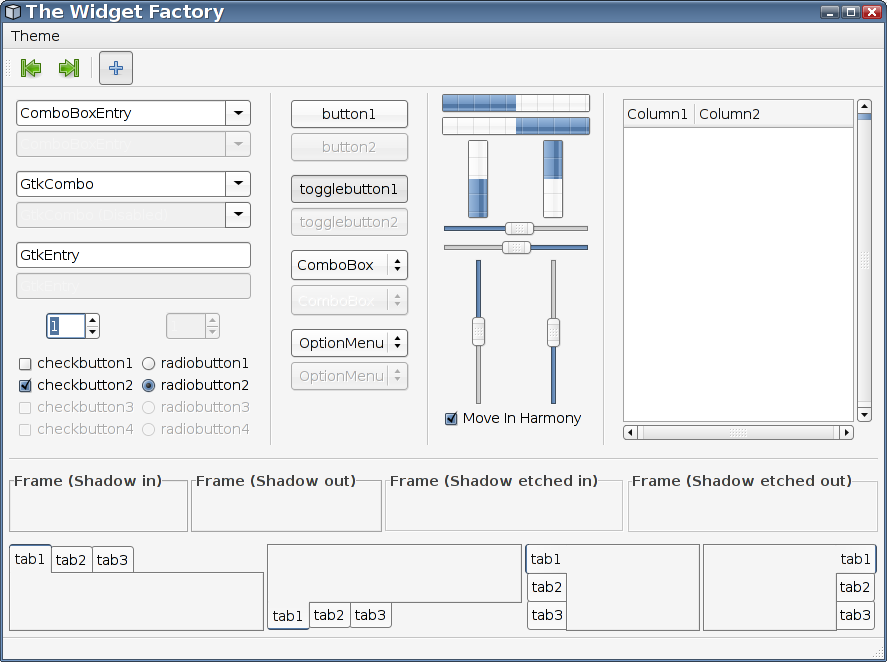
Here are two gtk themes that I created for use with xubuntu. The first one depends on the clearlooks engine: # Xedgy-Clearlooks theme for Xubuntu # Based on Clearlooks # Created by Peter Durrill. style "clearlooks-default" { GtkButton ::default_border = { 0, 0, 0, 0 } GtkRange ::trough_border = 0 GtkPaned ::handle_size = 6 GtkRange ::slider_width = 15 GtkRange ::stepper_size = 15 GtkScrollbar ::min_slider_length = 30 GtkCheckButton ::indicator_size = 12 GtkMenuBar ::internal-padding = 0 GtkTreeView ::expander_size = 14 GtkExpander ::expander_size = 16 xthickness = 1 ythickness = 1 fg[NORMAL] = "#101010" # dark grey fg[PRELIGHT] = "#101010" # dark grey fg[ACTIVE] = "#000000" # black fg[SELECTED] = "#ffffff" # white fg[INSENSITIVE] = "#aaaaaa" # dark white / grey bg[NORMAL] = "#f5f5f5" # white / light grey bg[PRELIGHT] = "#ffffff" # white bg[ACTIVE] = "#f0f0f0" # mid white / light grey bg[SELECTED] = "#51739c" # blue bg[INSENSITIVE] = "#f5f5f5" # white / light grey base[NORMAL] = "#f5f5f5" # white / light grey base[PRELIGHT] = "#51739c" # blue base[ACTIVE] = "#aaaaaa" # dark white / light grey base[SELECTED] = "#51739c" # blue base[INSENSITIVE] = "#f5f5f5" # white / light grey text[NORMAL] = "#000000" # black text[PRELIGHT] = "#000000" # black text[ACTIVE] = "#ffffff" # white text[SELECTED] = "#ffffff" # white text[INSENSITIVE] = "#aaaaaa" # dark white / light grey engine "clearlooks" { menubarstyle = 2 # 0 = flat, 1 = sunken, 2 = flat gradient menuitemstyle = 1 # 0 = flat, 1 = 3d-ish (gradient), 2 = 3d-ish (button) listviewitemstyle = 1 # 0 = flat, 1 = 3d-ish (gradient) progressbarstyle = 0 # 0 = candy bar, 1 = flat } } style "clearlooks-wide" = "clearlooks-default" { xthickness = 2 ythickness = 2 } style "clearlooks-button" = "clearlooks-default" { xthickness = 3 ythickness = 3 } style "clearlooks-check" = "clearlooks-button" { text[NORMAL] = "#336699" # blue text[PRELIGHT] = "#6699cc" # blue } style "clearlooks-notebook" = "clearlooks-wide" { bg[NORMAL] = "#f0f0f0" # mid white / light grey bg[INSENSITIVE] = "#ffffff" # white } style "clearlooks-tasklist" = "clearlooks-default" { xthickness = 5 ythickness = 3 } style "clearlooks-menu" = "clearlooks-default" { xthickness = 2 ythickness = 1 bg[NORMAL] = "#ffffff" # white } style "clearlooks-menu-item" = "clearlooks-default" { xthickness = 2 ythickness = 3 fg[PRELIGHT] = "#ffffff" # white text[PRELIGHT] = "#ffffff" # white bg[PRELIGHT] = "#000000" # black } style "clearlooks-menu-itembar" = "clearlooks-default" { xthickness = 3 ythickness = 3 } style "clearlooks-tree" = "clearlooks-default" { xthickness = 2 ythickness = 2 } style "clearlooks-frame-title" = "clearlooks-default" { fg[NORMAL] = "#2a2a2a" # grey } style "clearlooks-tooltips" = "clearlooks-default" { xthickness = 4 ythickness = 4 bg[NORMAL] = "#ffffff" # white } style "clearlooks-progressbar" = "clearlooks-default" { xthickness = 1 ythickness = 1 fg[PRELIGHT] = "#ffffff" # white } style "clearlooks-combo" = "clearlooks-default" { xthickness = 2 ythickness = 3 } # widget styles class "GtkWidget" style "clearlooks-default" class "GtkButton" style "clearlooks-button" class "GtkCombo" style "clearlooks-button" class "GtkRange" style "clearlooks-wide" class "GtkFrame" style "clearlooks-wide" class "GtkMenu" style "clearlooks-menu" class "GtkEntry" style "clearlooks-button" class "GtkMenuItem" style "clearlooks-menu-item" class "GtkStatusbar" style "clearlooks-wide" class "GtkNotebook" style "clearlooks-notebook" class "GtkProgressBar" style "clearlooks-progressbar" class "GtkCheckButton" style "clearlooks-check" class "GtkRadioButton" style "clearlooks-check" widget_class "*MenuItem.*" style "clearlooks-menu-item" # combobox stuff widget_class "*.GtkComboBox.GtkButton" style "clearlooks-combo" widget_class "*.GtkCombo.GtkButton" style "clearlooks-combo" # tooltips stuff widget_class "*.tooltips.*.GtkToggleButton" style "clearlooks-tasklist" widget "gtk-tooltips" style "clearlooks-tooltips" # treeview stuff widget_class "*.GtkTreeView.GtkButton" style "clearlooks-tree" widget_class "*.GtkCTree.GtkButton" style "clearlooks-tree" widget_class "*.GtkList.GtkButton" style "clearlooks-tree" widget_class "*.GtkCList.GtkButton" style "clearlooks-tree" widget_class "*.GtkFrame.GtkLabel" style "clearlooks-frame-title" # notebook stuff widget_class "*.GtkNotebook.*.GtkEventBox" style "clearlooks-notebook" widget_class "*.GtkNotebook.*.GtkViewport" style "clearlooks-notebook" The second depends on the ubuntu-looks engine: # Xedgy-Human theme for Xubuntu # Based on Ubuntu Human Colorscheme # Created by Peter Durrill. style "clearlooks-default" { GtkButton ::default_border = { 0, 0, 0, 0 } GtkRange ::trough_border = 0 GtkPaned ::handle_size = 6 GtkRange ::slider_width = 15 GtkRange ::stepper_size = 15 GtkScrollbar ::min_slider_length = 35 GtkCheckButton ::indicator_size = 14 GtkMenuBar ::internal-padding = 0 GtkTreeView ::expander_size = 14 GtkExpander ::expander_size = 16 GtkScale ::slider-length = 31 # GtkToolbar ::button-relief = GTK_RELIEF_NORMAL # GtkMenuBar ::shadow-type = GTK_SHADOW_OUT # GtkScrollbar ::has-secondary-forward-stepper = 1 # GtkScrollbar ::has-secondary-backward-stepper = 1 GtkButton ::child-displacement-x = 0 GtkButton ::child-displacement-y = 0 xthickness = 1 ythickness = 1 GtkTreeView::odd_row_color = "#ffffff" GtkTreeView::even_row_color = "#f0f0f0" fg[NORMAL] = "#101010" fg[PRELIGHT] = "#000000" fg[ACTIVE] = "#000000" fg[SELECTED] = "#ffffff" fg[INSENSITIVE] = "#aaaaaa" # B3AFAB disabled widget text bg[NORMAL] = "#f5f5f5" # efebe7 background bg[PRELIGHT] = "#f5f5f5" # f5f3f0 ? bg[ACTIVE] = "#ffffff" # E1D9D1 ? bg[SELECTED] = "#f5f5f5" # D6722D ? bg[INSENSITIVE] = "#f0f0f0" # EBE7E3 disabled widget backgrounds base[NORMAL] = "#ffffff" base[PRELIGHT] = "#ffffff" base[ACTIVE] = "#ffffff" # E1D9D1 base[SELECTED] = "#52759f" # FFD799 highlights base[INSENSITIVE] = "#f0f0f0" # EBE7E3 disabled entry widget background text[NORMAL] = "#000000" text[PRELIGHT] = "#000000" text[ACTIVE] = "#000000" text[SELECTED] = "#ffffff" # highlighted text text[INSENSITIVE] = "#f5f5f5" # B3AFAB engine "ubuntulooks" { menubarstyle = 2 # 0 = flat, 1 = sunken, 2 = flat gradient menuitemstyle = 1 # 0 = flat, 1 = 3d-ish (gradient), 2 = 3d-ish (button) listviewitemstyle = 1 # 0 = flat, 1 = 3d-ish (gradient) progressbarstyle = 1 # 0 = candy bar, 1 = fancy candy bar, 2 = flat animation = FALSE } } # Evolution (and some deprecated widgets) use bg and fg for its listview instead of # base and text like they should, so we override it. style "evolution-hack" = "clearlooks-default" { bg[ACTIVE] = "#f5f5f5" # E1D9D1 bg[SELECTED] = "#52759f" # FFD799 gtk combo highlight fg[ACTIVE] = "#000000" fg[SELECTED] = "#ffffff" # 000000 gtk combo highlight text } # Bright orange highlights only for selected widgets style "clearlooks-orange" = "clearlooks-default" { bg[SELECTED] = "#52759f" # FF6D0C } style "clearlooks-wide" = "clearlooks-default" { xthickness = 2 ythickness = 2 } style "clearlooks-wide-orange" = "clearlooks-wide" { bg[SELECTED] = "#52759f" # FF6D0C } style "clearlooks-wider" = "clearlooks-default" { xthickness = 3 ythickness = 3 } style "clearlooks-wider-orange" = "clearlooks-wider" { bg[SELECTED] = "#52759f" # FF6D0C } style "clearlooks-button" = "clearlooks-wider-orange" { bg[PRELIGHT] = "#efefef" # button prelight bg[ACTIVE] = "#e5e5e5" # pressed button } style "clearlooks-notebook" = "clearlooks-wide-orange" { bg[NORMAL] = "#f5f5f5" # efebe5 bg[ACTIVE] = "#f5f5f5" # d0c8c1 bg[INSENSITIVE] = "#f5f5f5" # efebe5 } style "clearlooks-tasklist" = "clearlooks-default" { xthickness = 5 ythickness = 3 } style "clearlooks-menu" = "clearlooks-default" { xthickness = 2 ythickness = 1 bg[NORMAL] = "#f5f5f5" # f8f5f2 menu background } style "clearlooks-menubar-item" = "clearlooks-button" { fg[PRELIGHT] = "#000000" } style "clearlooks-menu-item" = "clearlooks-default" { xthickness = 2 ythickness = 3 bg[SELECTED] = "#52759f" # FFD799 menu highlights fg[PRELIGHT] = "#ffffff" # 000000 highlited menu text text[PRELIGHT] = "#000000" } style "clearlooks-tree" = "clearlooks-wide" { } style "clearlooks-frame-title" = "clearlooks-default" { fg[NORMAL] = "#404040" } style "clearlooks-tooltips" = "clearlooks-default" { xthickness = 4 ythickness = 4 bg[NORMAL] = { 1.0,1.0,1.0 } } style "clearlooks-progressbar" = "clearlooks-wide-orange" { xthickness = 2 ythickness = 2 fg[PRELIGHT] = "#ffffff" } style "clearlooks-combo" = "clearlooks-button" { } style "clearlooks-check" = "clearlooks-button" { } style "clearlooks-range" = "clearlooks-wide-orange" { } style "metacity-frame" = "clearlooks-default" { bg[SELECTED] = "#52759f" # CC863E } style "extra-view-widgets" = "clearlooks-default" { bg[NORMAL] = "#f5f5f5" # F5C07F } # widget styles class "GtkWidget" style "clearlooks-default" class "GtkButton" style "clearlooks-button" class "GtkCombo" style "clearlooks-button" class "GtkRange" style "clearlooks-range" class "GtkFrame" style "clearlooks-wide" class "GtkMenu" style "clearlooks-menu" class "GtkEntry" style "clearlooks-wider-orange" class "GtkMenuItem" style "clearlooks-menu-item" class "GtkNotebook" style "clearlooks-notebook" class "GtkProgressBar" style "clearlooks-progressbar" class "MetaFrames" style "metacity-frame" class "GtkWindow" style "metacity-frame" class "GtkCheckButton" style "clearlooks-check" class "GtkRadioButton" style "clearlooks-check" widget_class "*MenuItem.*" style "clearlooks-menu-item" widget_class "*MenuItem.*ProgressBar*" style "clearlooks-default" # combobox stuff widget_class "*.GtkComboBox.GtkButton" style "clearlooks-combo" widget_class "*.GtkCombo.GtkButton" style "clearlooks-combo" # tooltips stuff widget_class "*.tooltips.*.GtkToggleButton" style "clearlooks-tasklist" widget "gtk-tooltips" style "clearlooks-tooltips" # treeview stuff widget_class "*.GtkTreeView.GtkButton" style "clearlooks-tree" widget_class "*.GtkCTree.GtkButton" style "clearlooks-tree" widget_class "*.GtkList.GtkButton" style "clearlooks-tree" widget_class "*.GtkCList.GtkButton" style "clearlooks-tree" widget_class "*.GtkFrame.GtkLabel" style "clearlooks-frame-title" # notebook stuff widget_class "*.GtkNotebook.*.GtkEventBox" style "clearlooks-notebook" widget_class "*.GtkNotebook.*.GtkViewport" style "clearlooks-notebook" # these should really use base and text colors instead widget_class "*GtkCTree*" style "evolution-hack" widget_class "*GtkList*" style "evolution-hack" widget_class "*GtkCList*" style "evolution-hack" widget_class "*.ETree.*" style "evolution-hack" widget "*.nautilus-extra-view-widget" style:highest "extra-view-widgets" unfortunatly, either I got them on the wiki too late, or they just weren't liked. But here they are for the rest of us.

Tuesday

News and an Extension

So, I'm (hopefully) writing this post from deepest sender, a firefox plugin that gives you the ability to post from the firefox sidebar. This, unfortunately, is due to avg antivirus recognizing portable firefox 2.0 as a trojan. And not the ribbed kind. DS is not 2.0 compatible yet, so I'd had it on a back shelf and was using performancing-- which BTW is teh suk compared to DS.

Hopefully this will encourage me to post more often. I hope to write a couple of entries here later, but for a quick status report:

The GDM theming tutorial is stalled at about 75-80 percent complete. I'm still not sure how glorious of a finish I want to give the instructional GDM theme. More on this later.

It looks like the Xubuntu team didn't care for either of my gtk themes, and have chosen to go withGTK a murrina-based theme. it's cool in that it's different, but the engine just leaves the themes looking too hard for my tastes. More on this later (film at eleven!).

Not only have I figured out how to get my Ubuntu box to play adultswim's fix, but I've figured out how to save them locally to... ahem, so I can, uh, play them without the lag of streaming. More on this later.

The supremely, nay, divinely simple GDM theme that I posted on gnome look now has it's second derivative posted there. I couldn't be more proud. the first was 22lips, and has a fantastic svg wallpaper of... two tulips. The second is part of a meta-theme/style pack for arch Linux.

My first theme, sunergos blue, should be breaking the 5,000 downloads barrier sometime today. Mind you, that's just from the two sites that I can keep track of, I've seen it posted (by others :D) in at least five theme sites, as well as on my sunergos homepage. That, in my opinion, is really fucking cool.

Hopefully, I will be gainfully employed again by the end of this month doing something that is a hair's breadth from my dream job. It's the first job Ive wanted to study up for, so I'm hoping things go well.

Well, that's all for now, hopefully this will post and not be eaten by the entarwebs....MFL &<

Xfce Recycle Bin workaround in four easy steps.

The new Xfce desktop is rather cool. The latest release include Thunar, a fast and light (and downright sexy) file manager. But Xfce and Thunar are not exactly perfect. One of the things I do miss is a trash or recycle bin. In the current thunar, when you delete a file, it is gone for good. Here's what I did to work around that.

Step 1: Create a folder for your trash. This can be anywhere that you have write access. I put mine in my home folder. For the purposes of this tutorial I will call the home folder "mine". You should replace "mine" with the name of your own home folder. So, create a folder called ".trash" in "/home/mine/". Now you should have a "/home/mine/.trash" folder.

Step 2: Now, in Thunar, click on Edit in the menu bar. Towards the end of the menu, click on "Configure custom actions". The custom actions window will probably have at least one entry, probably the "Open Terminal Here" action. Click on the plus sign on the right-hand side of the window. You will get the create action window. Under name, I typed "Trash". You may want to call it "move to trash" or something similar. For Command, type mv %n /home/mine/.trash/%n If you want an icon, click on the box that says "no icon" and choose an icon. Click on the "appearance Conditions" tab at top. You want an asterisk (*) for File pattern and go ahead and check all of the boxes in the window. Click on Ok in the Create Action window, and Close on the Custom Action window. Now when you right-click on a single file or folder, you should have an entry that says "Trash" and clicking on trash should move the file to "/home/mine/.trash"

Step 3: Like I said, this will only work on a single file. So for moving multiple files I need another solution. What I did was add an entry to the shortcuts sidebar for the .trash folder. If you have thunar open to your home folder, click on "View" on the menubar. About half way down the menu there should be an entry that says "Show Hidden Files". Click on that and there should be several folders now with names that start with a period. Scroll down until you find the ".trash" folder. Right-click on the .trash folder and left-click on "Add Folder to Shortcuts" on the menu. Now you should be able to select multiple files and folders and drag them to the .trash folder on the sidebar. If you want, you can rename the shortcut on the sidebar. I renamed mine to "trash"

Step 4: Ok, so now we can send files to the trash, but I've come to expect at least a little more functionality from my trash bin. So, the final step for my weak recycle bin replacement is to add a trash bin link to the task bar. Right-click on the bar and choose "Add New Item". In the "Add Items to the Panel" window, click on "Launcher" and click the "Add" button. Now you should be in the "Properties" window. For "Name" type "Trash", Choose an icon if you want, and for "Command" type thunar /home/mine/.trash This will open thunar to your .trash folder. Now, Look for the plus icon on the bottom left hand side of the Properties window. Click on that an you should have "New item" in the list above. For "Name" type "Empty Trash", Choose an icon if you want, and for "Command" type rm /home/mine/.trash/* Now check the box that says "Run in terminal" and click on close. You should now have an icon for trash, and an arrow that opens a menu with "Empty Trash". This will delete the contents of the .trash folder, so use it with caution.

Well. that, sadly is it. It is far from a complete solution. Most notably, pressing delete on the keyboard will still permanently delete a file. But without figuring out how to remap the delete key, this is all I've got. Much Love.

Saturday

Installing Guten on Ubuntu Dapper

Guten is an application that acts as an interface to the Project Gutenberg project. It formats and displays books, allows bookmarking, and automatically saves your current placein a text. The catalogue allows you to browse through titles and search based on autor or title.

Getting the Software

This is fairly easy to do, but does require that you download some additional files.

Get the Guten source here.
Get most current SQLObject deb here. Installing Double-click on the python2.4-sqlobject_0.6.1-1_all.deb file that you downloaded, it will give you a warning about the version, but just click on close and then install the package. Now, go to a terminal, and run sudo apt-get python-sqlite

Once that is installed, go back to your desktop and double-click on the guten-0.3.tar.bz2 file that you downloaded. Once it opens in the archive manager, extract it somewhere that will be easy to get to in the terminal. Now, go back to your terminal and get to the folder where you extracted guten. once you are there type:

sudo python setup.py install
Once that is done, you should be able to run guten.

Working Shockwave in Ubuntu Dapper (in about 10 minute's)

No sound on my system, your mileage may vary First, you need to enable the universe repositories. There are instructions on the unofficial ubuntu guide. Now, open up your trusty terminal. When the time comes, just assume that you say yes to everything.

sudo apt-get update (enter your administrator password.)

sudo apt-get install wine (I got a warning here about sound)

sudo apt-get install mozplugger winecfg (after a bit of cranking, this should open a window with a windows 2000(TM) look to it)

If you haven't done so already, download the firefox and shockwave install files from their respective sites. The files I downloaded were "Firefox Setup 1.5.0.4.exe" and "Shockwave_Installer_Slim.exe" Back in your trusty terminal window, change to the directory of the install files, and type: wine Firefox\ Setup\ 1.5.0.4.exe That should start the installer for firefox. For the sake of this document, I will assume that you chose all of the default options and locations. You may want to test the browser, you can use the convenient icon on the desktop or type:

wine /home/USERNAME/.wine/drive_c/Program\ Files/Mozilla\ Firefox/firefox.exe where USERNAME is your user name. If firefox does not open, rinse, spin, and repeat. Ok, now close firefox. Please. Next type: wine Shockwave_Installer_Slim.exe That should start the installer for shockwave. Follow through again, choosing the default options and locations. Now, once you are done, try opening firefox again and test out something shockwavy.

Resources:

--enabling the universe repositories-- --Firefox Setup 1.5.0.4.exe-- --Shockwave_Installer_Slim.exe--